This guide will help you setup Outlook for your email account with ServerStage
Please don't let the language bother you, this configuration was done on a German Outlook 2007. Anyone should be able to follow the examples, orienting by the dialog shape and button positions.
Step 1. Tools -> Accounts -> New -> (IMAP) -> Manually Configure Server Settings
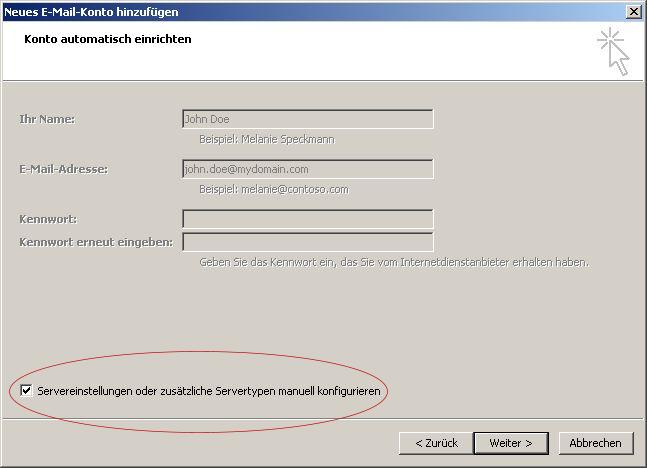
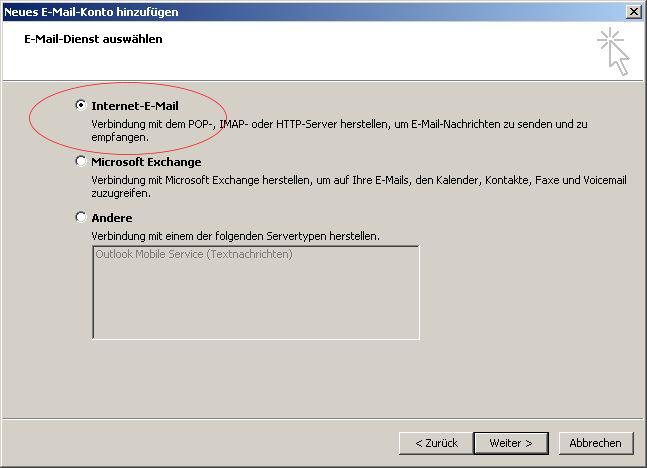
Step 2. Select Internet E-Mail or IMAP
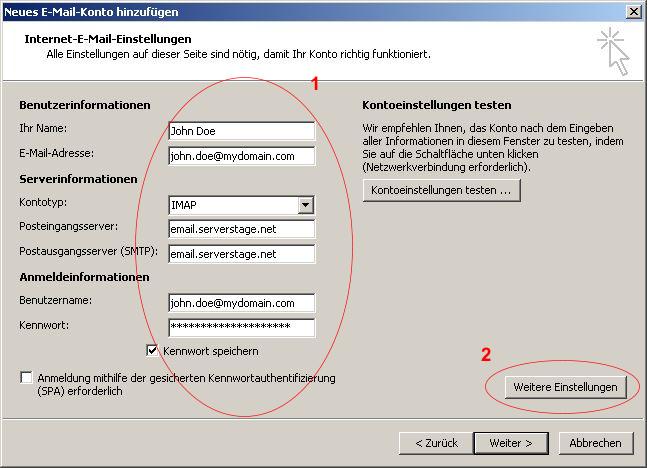
Step 3. Enter the details for your account (Number 1 in the image below):
- Account Type: IMAP
- Incoming Mail Server: email.serverstage.net
- SMTP Server: email.serverstage.net
- Username: E-Mail address
Then click "More Settings" (Number 2 in the image below):
Step 4: Switch to the "Outgoing Server" Tab and select "SMTP Requires Authentification", "Same Settings as Incoming Mail"
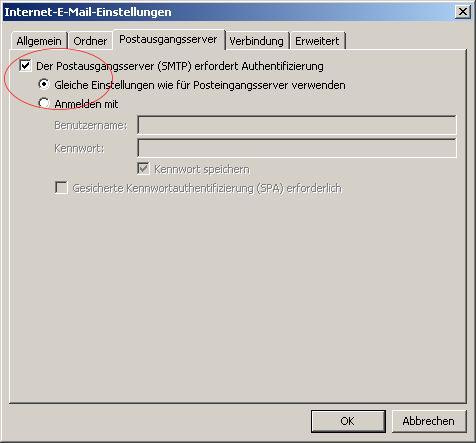
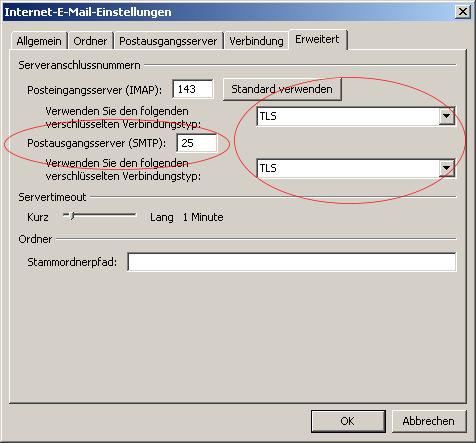
Step 5: Switch to the "Advanced" Tab and choose TLS (or STARTTLS). Our Servers support SMTP over ports 25, 465, 587 and 2525 (non-standard port useful in Hotels!)